



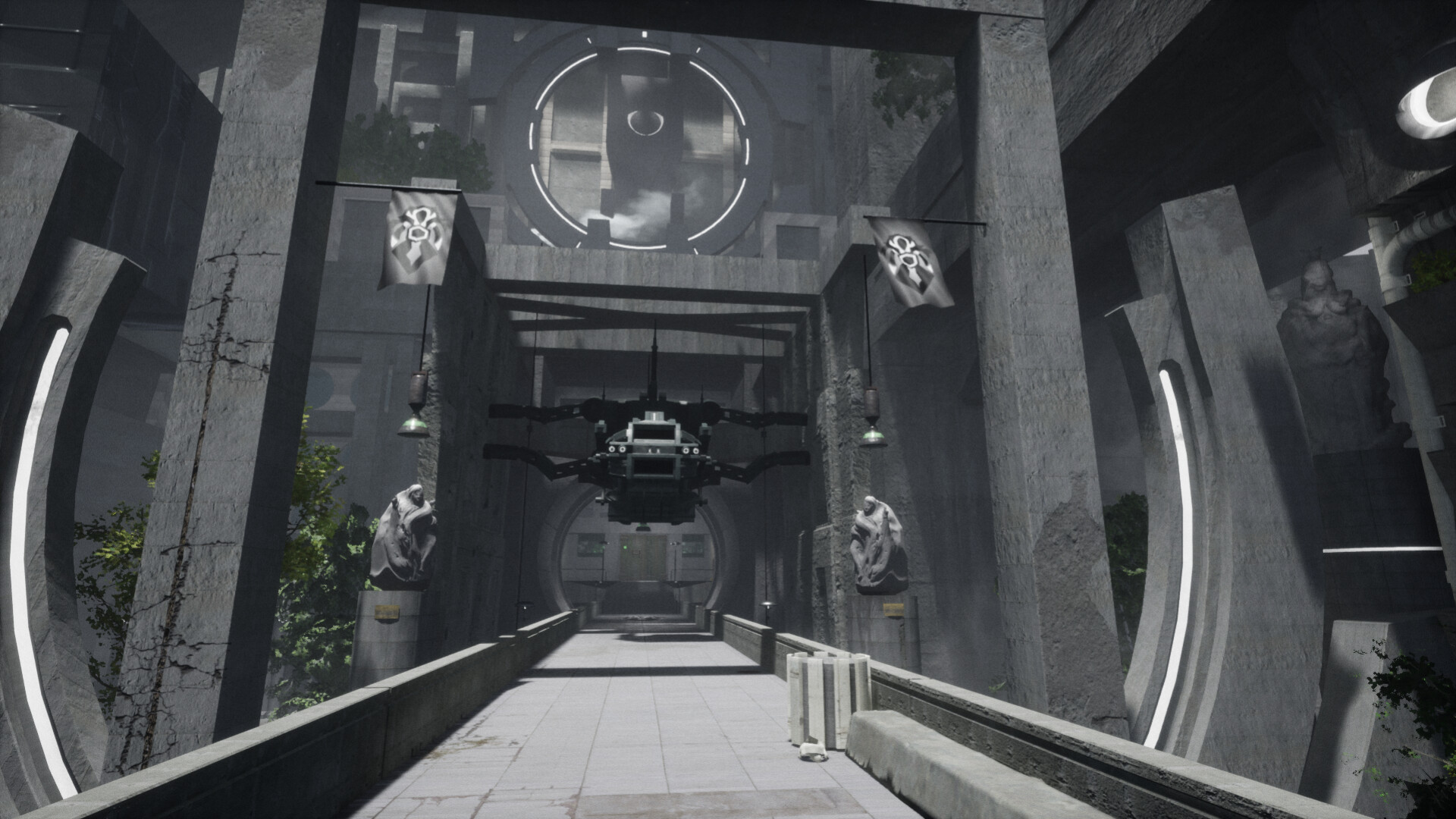
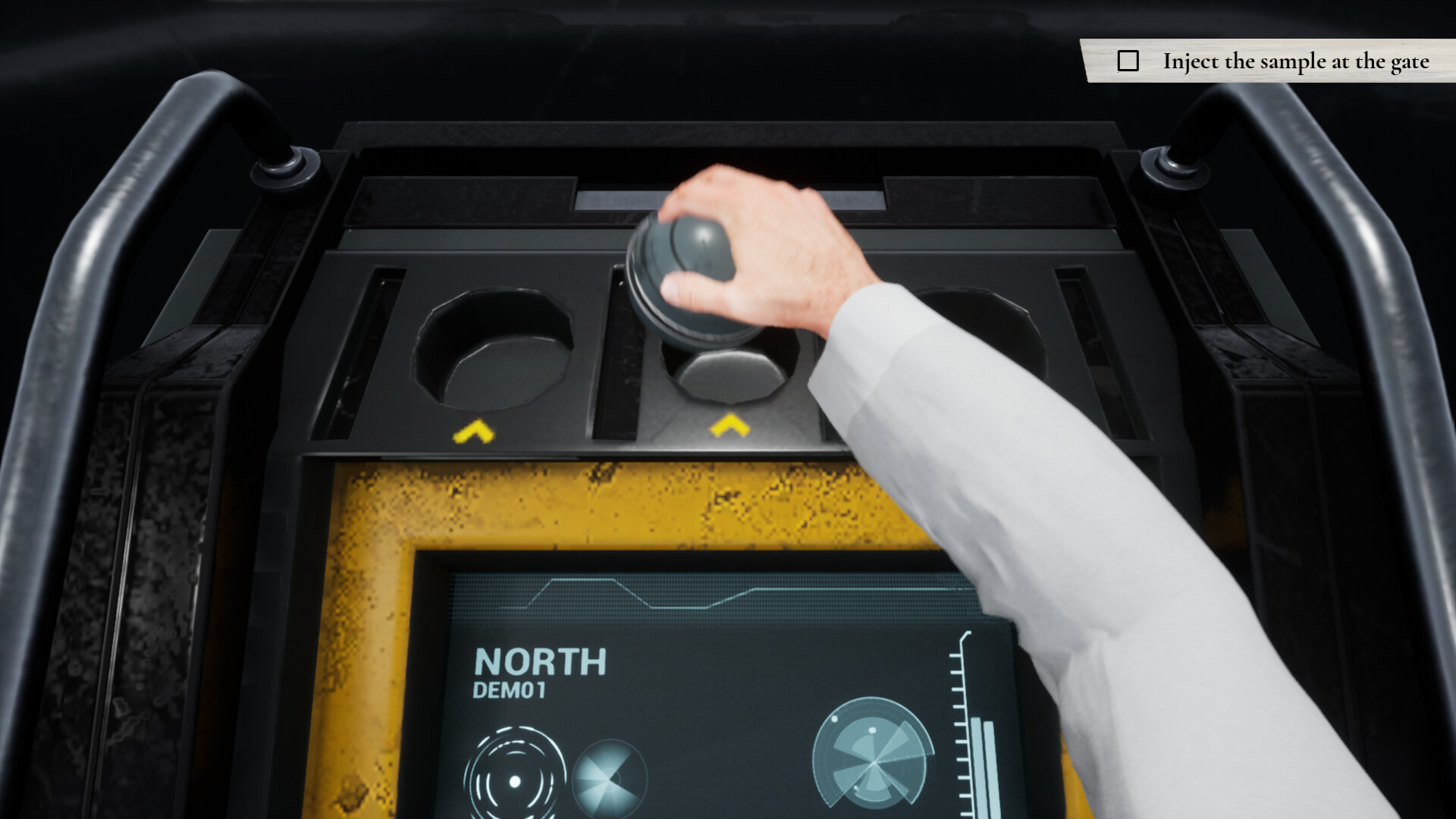
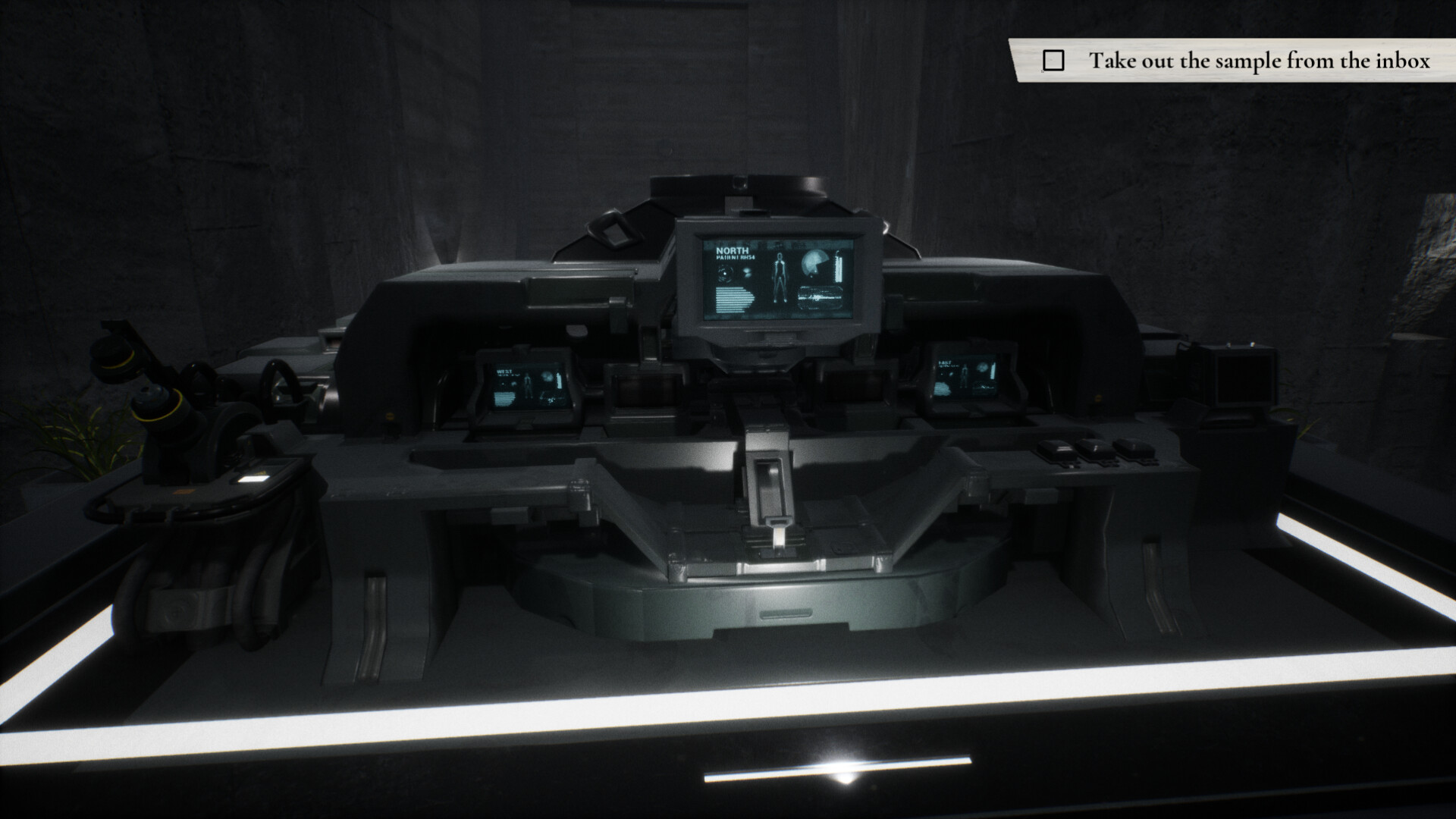



Step into the shoes of Dr Vincent Batten, who takes on his new role at the Ministry of Health of the Fifth Republic. Known as a care center for mentally unstable patients, you will find yourself curious, yet intimidated behind the walls of this facility.

In times when the republic is characterized by unrest and riots, it is all the more honourable to tackle such a task.
Your family must be proud!

A Doctor's Term is a story-heavy walking sim featuring stunning environments, thought-provoking narrative and an original soundtrack composed by Manolis Kalpenidis.

A confidential adventure where freedom of choice may be bigger than anticipated.
Observe your patients, test new samples on them, follow your orders!
Are you ready for the job?
🕹️ Partial Controller Support
🎮 Full Controller Support
- [0 B]
We started testing our game on Steam Deck early on and found it to have decent performance while plugged in or docked. However, even though the game runs fine on battery, we also noticed that there are some performance drops that can be mitigated by tweaking settings.
Therefor, we prepared this guide to help you get the best possible experience of A Doctor\'s Term on deck.
Playing on Battery
Recommended Settings
Frame Rate Limit: 60
[/*]Render Percentage: 80% (up to 100%)
[/*]
Why These Settings?
The Frame Rate Limit will help with capping frames in high performing areas (e.g. during text dialogue sequences) which helps saving power. This will avoid your deck getting hot (or at least not hotter) during these parts of the game and it saves battery.
The Render Percentage on 80% is a good trade-off on deck. It helps with performance, while still maintaining the visual appeal of the game. Anything below 80% will easily look blurry on deck and may even cause render artifacts.
However, if you are happy with the performance, feel free to keep the Render Percentage on 100% for better image quality. We recommend keeping the Frame Rate Limit at 60 though.
Playing Plugged or Docked
Recommended Settings
Frame Rate Limit: 60 (up to 120)
[/*]Render Percentage: 100% (up to 150%)
[/*]
Why These Settings?
Even when plugged in, a Frame Rate Limit will help with capping frames in high performing areas (e.g. during text dialogue sequences), which avoids your deck from getting hot (or at least not hotter). If you play on the deck\'s screen, your device refresh rate may not go beyond 60Hz anyways.
If you are playing docked however, you can consider increasing the Frame Rate Limit. More than 120 may not make sense either though, as this is the highest rate Steam Deck can output to other screens when docked.
Regarding Render Percentage, the game should be able to handle 100% when plugged in or docked. You may even consider to go to the maximum there, dependent on your desired visual output, especially when docked.
Troubleshooting
Steam Deck Fails to Execute .sh File
On certain decks, an issue about an .sh file failed to execute or not being executed may occur. We already attempted to fix this, by simplifying said file to cause less issues, but just in case, here are ways to work around this:
Play via Proton:\nYou can alternatively run the game\'s Windows built via Proton. This will download an alternative version of the game which should also run fine on the deck. \nFor this, in Steam to A Doctor\'s Term > Tap the cog wheel button > Properties... > Compatibility > Check Force the use of a specific Steam Play compatibility tool > Select the latest Proton version or even the experimental one.
[/*]Run the game in Desktop Mode:\nFor this, press the STEAM button, go to Power > Switch to Desktop. From there you should find a regular Steam desktop client from which you can run the game. This runs the game in a slightly different runtime environment, which is more robust against these problems.
[/*]
Other Startup Issues or Graphics Issues
If you enconter any other startup issuesm, graphics issues or anything alike, consider running the game with a compatibility tool like Proton.
Play via Proton:\nFor this, in Steam to A Doctor\'s Term > Tap the cog wheel button > Properties... > Compatibility > Check Force the use of a specific Steam Play compatibility tool > Select the latest Proton version or even the experimental one.
[/*]
If you have any feedback or further questions regarding Steam Deck compatibility or performance, feel free to leave a comment and we will get back to you.
Minimum Setup
- OS: SteamOS. Ubuntu 16.04 (or equivalent distro)
- Processor: Core i3 / A6 2.4GHzMemory: 6 GB RAM
- Memory: 6 GB RAM
- Graphics: @1280x720: GeForce GTX 1050 3 GB / Radeon RX 560 4 GB
- Storage: 11 GB available space
Recommended Setup
- OS: SteamOS. Ubuntu 16.04 and later (or equivalent distro)
- Processor: Core i7 / Ryzen 7 2700 3.2GHzMemory: 8 GB RAM
- Graphics: @1920x1080: GeForce RTX 2060 6 GB / GeForce GTX 1070 8 GB / Radeon RX 5600 XT 6GB
- Storage: 11 GB available space

[ 6372 ]





























[ 5840 ]


[ 1991 ]





























[ 1943 ]






























[ 986 ]






























Time left:
356099 days, 14 hours, 50 minutes

Time left:
356099 days, 14 hours, 50 minutes

Time left:
3 days, 22 hours, 50 minutes

Time left:
31 days, 22 hours, 50 minutes

Time left:
34 days, 22 hours, 50 minutes

Time left:
35 days, 22 hours, 50 minutes

Time left:
9 days, 8 hours, 50 minutes

Time left:
4 days, 16 hours, 50 minutes

Time left:
10 days, 16 hours, 50 minutes

Time left:
11 days, 16 hours, 50 minutes

Time left:
16 days, 16 hours, 50 minutes

Time left:
18 days, 16 hours, 50 minutes

Time left:
22 days, 16 hours, 50 minutes

Time left:
2 days, 6 hours, 5 minutes

Time left:
6 days, 22 hours, 51 minutes

Time left:
8 days, 21 hours, 51 minutes
Time left:
14 days, 5 hours, 1 minutes


